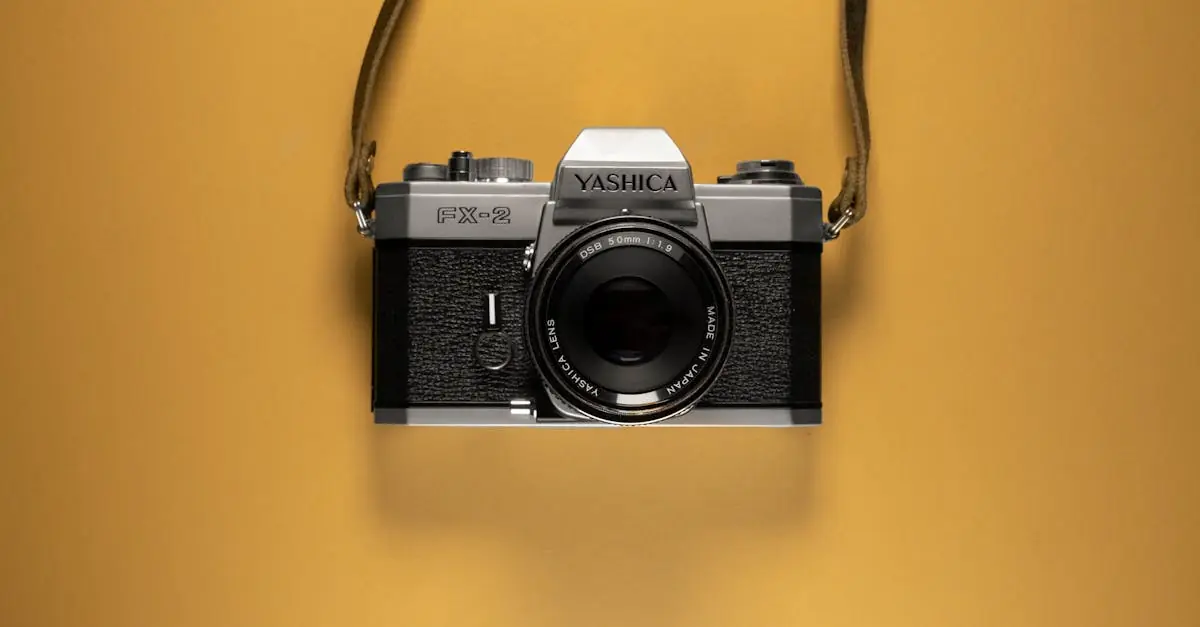
In a world where every moment deserves to be captured, mastering the shutter on an iPhone can turn anyone into a photography pro. Whether it’s a stunning sunset or your cat’s latest mischief, knowing how to snap that perfect shot is essential. But let’s face it, not everyone is born with an innate talent for photography—some of us still struggle with taking selfies that don’t look like we’re auditioning for a horror film.
Table of Contents
ToggleUnderstanding The Shutter Function On iPhone
The shutter function is vital for capturing images on an iPhone. This feature controls how long the camera sensor remains exposed to light, fundamentally affecting photo quality.
What Is The Shutter Function?
The shutter function refers to the mechanism that opens and closes when taking a photo. It determines the duration of light exposure in milliseconds. A fast shutter speed freezes motion, while a slow shutter speed creates a blur effect. In an iPhone, this function occurs automatically when the user clicks the shutter button. Users can tap on the screen or press the volume buttons to activate it. This allows for a more intuitive photography experience, eliminating the need for bulky camera equipment.
Why Is It Important For Photography?
Understanding the shutter function enhances photographic skills. A quick shutter speed captures fast-moving subjects like children playing or wildlife in action. Conversely, adjusting for slower speeds helps create artistic effects, such as light trails from traffic. Mastering these functions establishes better control over photographs, resulting in dynamic compositions. Awareness of shutter speed leads to more effective storytelling through images. Knowledge of this feature transforms ordinary moments into extraordinary visuals.
Steps To Shutter On iPhone
Capturing stunning pictures with an iPhone involves knowing how to effectively use its shutter functionality. Mastering these steps enhances photography skills.
Accessing The Camera App
To begin, open the Camera app from the home screen or the Control Center. Users can swipe left on the lock screen for quick access. The interface displays a primary viewfinder, making it easy to frame shots. Accessing additional features requires touching icons at the screen’s edge. These icons include options for modes like Portrait, Night, and Slow-Mo. Familiarizing with these modes aids in maximizing creativity.
Using The Shutter Button
The shutter button sits at the bottom of the screen, allowing for easy capture of images. Tapping this button takes a photo instantly, while holding it captures a burst of images. Pressing the volume buttons can also function as shutter buttons, providing added convenience. Users can choose from landscape or portrait orientations, ensuring comfort during shooting. Experimenting with different angles creates diverse perspectives.
Adjusting Settings For Optimal Performance
Adjusting settings enables improved photography performance. Users can tap the screen to focus on specific subjects, ensuring sharpness in the desired area. For optimal exposure, swiping up or down adjusts brightness levels. Additionally, turning on HDR enhances dynamic range in challenging lighting conditions. Enabling grid lines assists in maintaining composition, while using filters can enhance visual appeal. Familiarity with these settings ensures users make informed choices for stunning captures.
Advanced Shutter Techniques
Exploring advanced shutter techniques enhances photography on an iPhone. Mastery of techniques like burst mode and using volume buttons offers flexibility and creativity for stunning captures.
Burst Mode Photography
Burst mode captures a series of images in rapid succession. Activating it requires a simple press and hold of the shutter button. This technique proves invaluable for fast-moving subjects, ensuring that no moment is missed. Users can select the best shots from several options later. The iPhone saves up to 10 frames per second, allowing photographers to freeze action in dynamic situations. This feature suits sports events, children’s activities, and wildlife photography. By using burst mode effectively, individuals can highlight those spontaneous, fleeting moments that tell a compelling story.
Using Volume Buttons As Shutter
Utilizing volume buttons as a shutter provides an alternative to the on-screen shutter button. This method often feels more natural, especially when holding the phone horizontally. Users can easily press the volume up button to take a photo, achieving a steadier grip for improved stability. This technique is particularly useful for selfies, allowing for more comfortable angles without reaching for the screen. Additionally, volume buttons enable quick access to capturing images in various scenarios. Embracing this method adds a layer of versatility to photography and makes the shooting experience more enjoyable.
Common Issues And Troubleshooting
Understanding common issues related to the iPhone shutter function aids in better photography experiences. Addressing these problems promptly enhances users’ ability to capture high-quality images.
Addressing Shutter Lag
Shutter lag occurs when there’s a noticeable delay between pressing the shutter button and the camera capturing the image. This delay can be frustrating, particularly during fast-paced situations. Users often encounter this issue in various shooting modes, like Burst or Night mode. Restarting the Camera app can resolve temporary lags. Clearing storage space might also improve performance since low memory can contribute to delays. Additionally, checking for software updates ensures the camera runs using optimal code, potentially resolving lag issues.
Solutions For Unresponsive Shutter
An unresponsive shutter button can disrupt the entire photography process. Several factors might contribute to this problem, including low battery levels or software glitches. Users often find that closing and reopening the Camera app resolves temporary freezes. Restarting the iPhone offers another effective solution to reset the system. If the issue persists, checking for iOS updates is essential, as new versions can fix underlying bugs. Finally, ensuring the screen is clean and free of debris improves functionality, making it easier to activate the shutter.
Mastering the shutter function on an iPhone can truly elevate photography skills. By understanding how shutter speed impacts image quality and exploring various shooting modes, users can capture stunning visuals that tell a story. Utilizing features like burst mode and volume buttons enhances the experience, making it more intuitive and enjoyable.
Addressing common issues ensures that users can focus on creativity rather than technical difficulties. With practice and experimentation, anyone can transform everyday moments into extraordinary photographs. Embracing these techniques will not only improve skills but also foster a deeper appreciation for the art of photography.